
Camera mode
Connect a compatible camera and dance along in front of your TV.
Requires a compatible TV app and camera. Camera support varies by device.
Camera setup guide →
Keepdance · For TV
No dedicated motion controller needed. Use your phone or a compatible camera to dance along on the big screen.
Search for Keepdance in the app store built into your TV or projector (Hisense, Xiaomi, Huawei, TCL, Changhong, OPPO, JMGO projectors, etc.), use Dangbei Market for TVs/projectors or Shafa Market for TVs/projectors, or install on your TV or projector from a USB drive. No camera? Use your phone.
Store availability and compatibility vary by model and region.
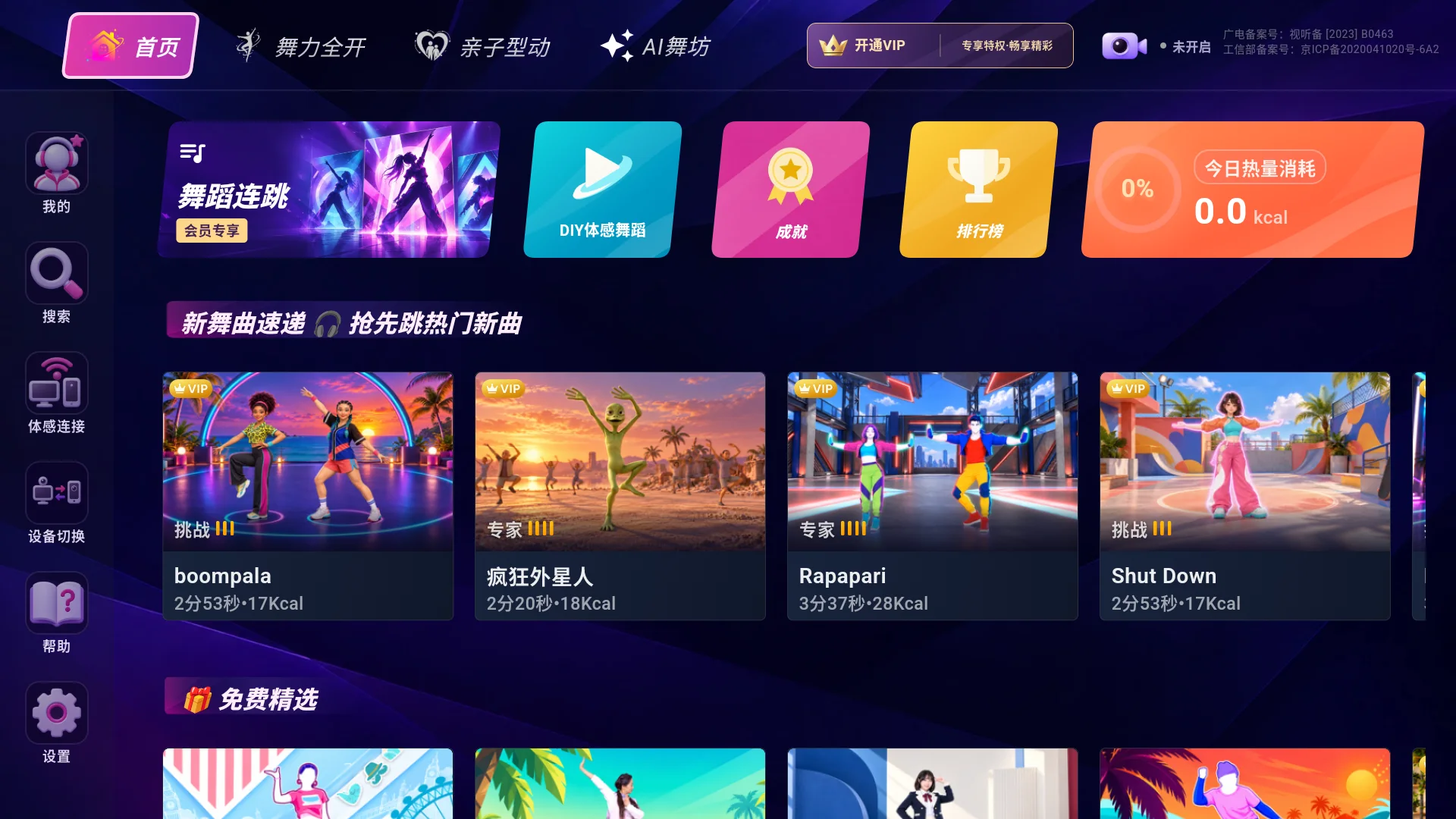
Use a phone or compatible camera for motion tracking. Screen mirroring is another option on supported devices.
Connect a compatible camera and dance along in front of your TV.
Requires a compatible TV app and camera. Camera support varies by device.
Camera setup guide →Connect your phone to the TV and use it for motion tracking.
Use a stable phone stand and connect your phone and TV to the same local network.
Phone connection guide →Mirror your phone’s screen on your TV.
Requires screen-mirroring support on your phone, TV and app version. Connection quality, audio and latency depend on your devices and network.
Downloads & support →Check your model, operating system and available installation methods first. TVs from the same brand can differ.
No TV camera? Use your phone. Connect both devices to the same local network and follow the app’s prompts.
Search for Keepdance (热舞型动) on your TV or projector. Availability, installation permissions and compatibility vary by model and region; these are options to check, not a promise of support.
Build a continuous-dance playlist, practice solo or invite a friend. You can also create dance content on your phone and follow the guide to bring it to TV. Available features depend on your app version.
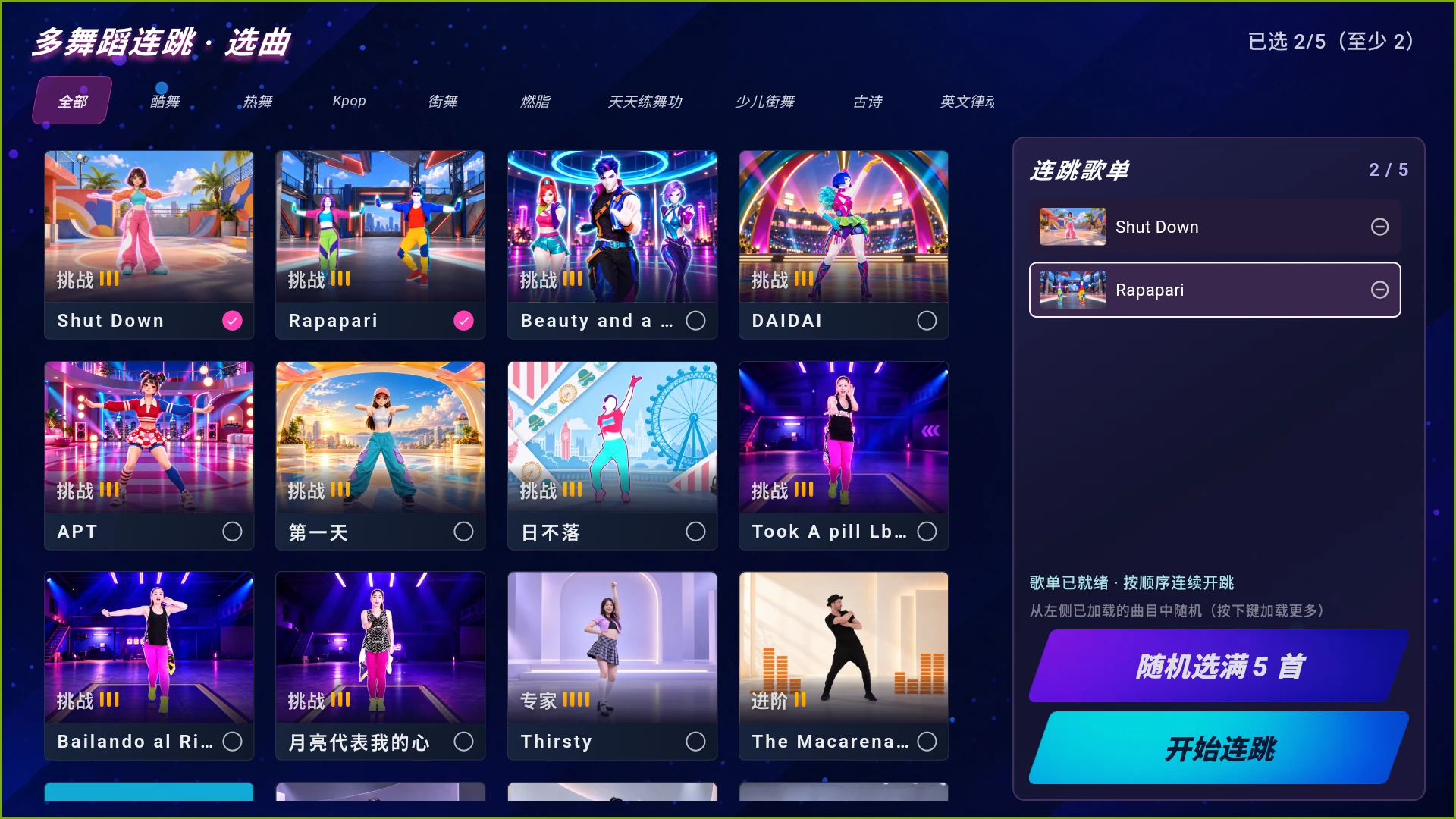
Choose tracks you enjoy and dance from one song to the next.
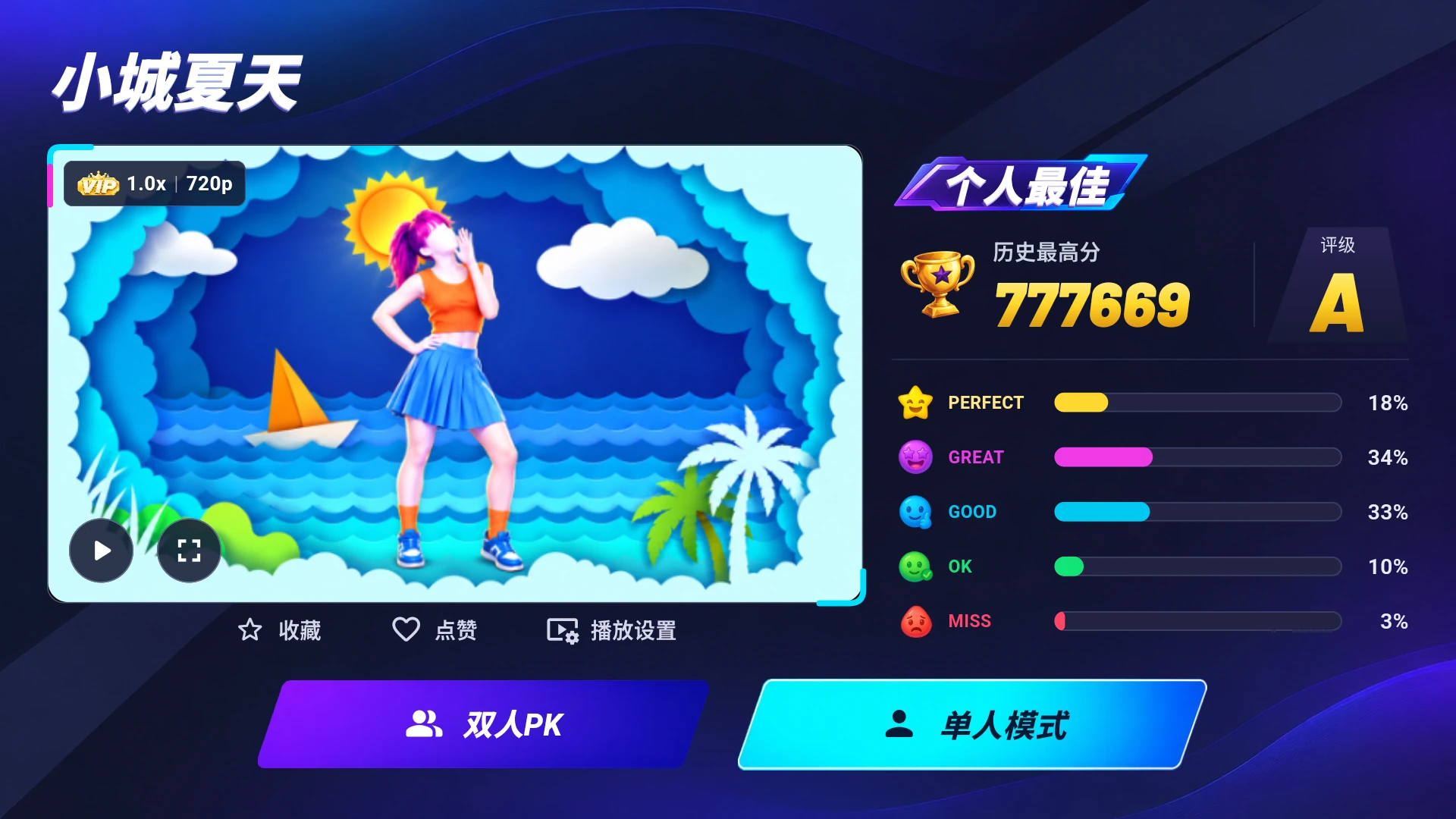
Pick a play mode, or learn to make your own dance →
Choose your connection and follow the steps below. Compatibility depends on your devices.
If the camera isn’t recognized, check your TV, camera and app version for compatibility.
Connect your phone to your TV
Open Keepdance Party on your phone, then choose the guide that matches your TV app version.
On your phone, select Connect by QR code (扫码连接) and scan the code on your TV.
Original video: Chinese interface and/or captions. Follow the English steps alongside it.
On your phone, select Discover devices (设备发现), then find and connect to your TV.
Original video: Chinese interface and/or captions. Follow the English steps alongside it.
Connection options depend on your TV and mobile app versions. Keep your phone steady and your whole body in view while dancing.
Some content requires membership. See the app for details. Check the purchase screen for current prices, eligible content and membership terms; do not assume mobile and TV entitlements are interchangeable.
Dance in a well-lit, open space and be mindful of people and objects around you. Children should use the app with a parent or guardian’s supervision and guidance. Choose an activity level that suits your health and fitness.
For help with installation or connections, email us with your TV brand, model, system version and app version:
smartlightning3d@outlook.com Before using the app, please read our
Privacy policy Children’s privacy policy Terms of service
A few answers to help you download, connect and start dancing.
Search the app store built into your TV or projector for Keepdance (热舞型动), or visit our official downloads page to get the TV APK and follow your TV’s installation prompts. The steps may differ between TV brands.
Try the phone connection option shown in your TV app. Connect both devices to the same local network and use a stable phone stand. Available options depend on your devices and app versions. See the phone connection steps .
Check that your TV and camera are compatible and that the camera is connected. Adjust the lighting and your position so your whole body is in view. If it still doesn’t work, contact us below with your TV brand, model, system version and app version. See the camera setup steps .
Check your TV’s internet connection and app version, then follow the on-screen prompts to try again. Still can’t sign in? Email support below with your TV brand, model, system version, app version and the error message. Never send passwords or verification codes.
This website is available in English. App menus, screenshots and video tutorials may still be in Chinese.