
Help center / Devices & troubleshooting
Get connected. Get back to dancing.
Work through camera choices, phone connections and playback settings, one step at a time.
Install on TV or projector
Search the app store built into your TV or projector for Keepdance (热舞型动), or get the installer from our official TV download page .
App store built into your TV or projector
Search for Keepdance (热舞型动) in the app store built into your TV or projector (Hisense, Xiaomi, Huawei, TCL, Changhong, OPPO, JMGO projectors, etc.).
Dangbei Market for TVs/projectors: if installed on your TV or projector, search for Keepdance (热舞型动).
Shafa Market for TVs/projectors: if installed on your TV or projector, search for Keepdance (热舞型动).
These are channels to check, not verified availability for every model. Store listings, installation permissions and compatibility vary by device and region. If unavailable, check the USB installation steps below.
How do I install the TV app from a USB drive?
The steps below are a TV reference. For a projector, follow its model-specific instructions; installation permissions and compatibility may differ.
- On a computer or phone, download the TV APK from this website and copy it to a USB drive your TV can read.
- Safely eject the drive, connect it to your TV’s USB port and find the APK in the TV’s file manager.
- Select the file and follow your TV’s installation prompts. Steps, installation permissions and compatibility vary by device.
If installation fails, check free storage and compatibility between the system and APK, then restart and try again. Before uninstalling the existing app, make sure you can recover your account and local files.
For help identifying and using the older interface, see the older TV app guide .
No camera? You can use a phone. Connect your phone and TV to the same local network and follow the app’s connection prompts. Available modes depend on your devices and versions.
Choose a device and camera
Support varies between TVs, projectors, cameras and app versions. Before buying an external camera, try a phone connection first. If you need a fixed setup, ask the device maker or seller to confirm compatibility between your TV and the USB camera.
Check the connector, driver-free support, placement requirements and after-sales policy. Specifications such as “plug and play” or resolution alone do not guarantee compatibility with every TV.
Is my TV or projector supported?
Check support for your particular model, operating system, camera and installed app version. Models from the same brand may differ, as may availability in their app stores.
Search the app store built into your TV or projector for Keepdance (热舞型动), or see our official downloads and installation guide . If you’re unsure, send support the brand, model and system version.
How do I use motion tracking with a projector?
Some projectors’ built-in cameras don’t face the user. Try selecting a phone connection in the TV app’s device switcher. Connect your phone and projector to the same local network and follow the prompts. Keep your phone steady with your whole body in view.
Phone connection issues
Connecting for the first time? See our TV and phone connection guide , including videos for newer and older versions.
Video reference from the original help center
This phone-connection example comes from the original help center. The interface may have changed; follow your current app’s prompts.
Original video: Chinese interface and/or captions. Follow the English steps alongside it.
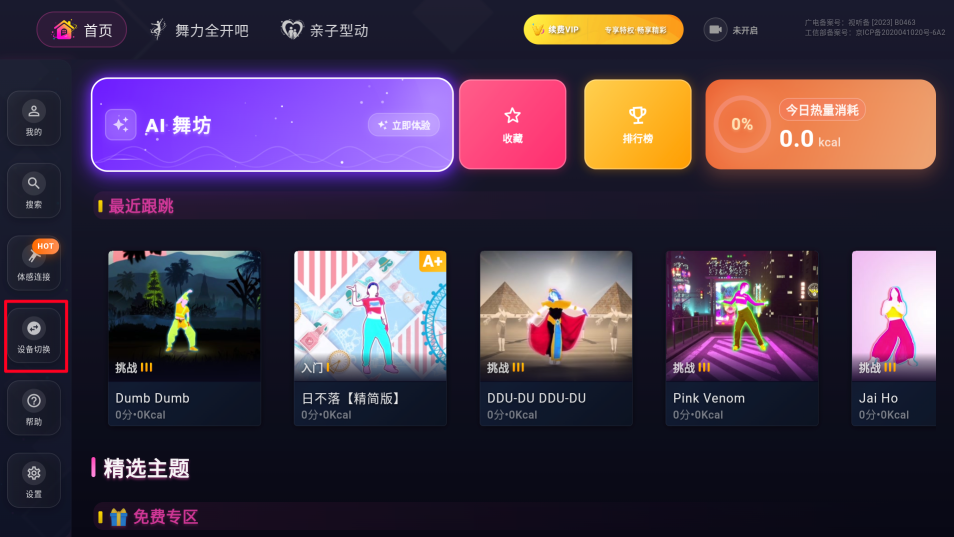
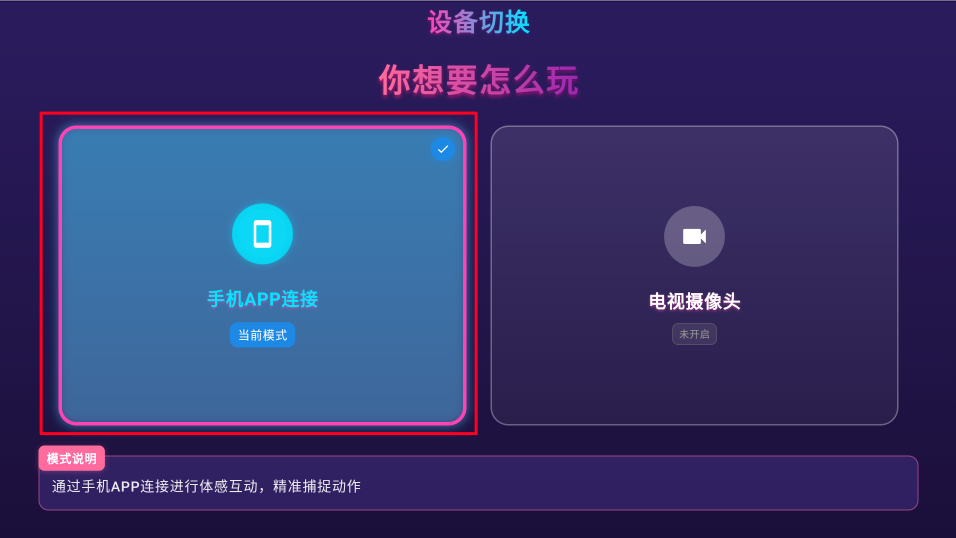
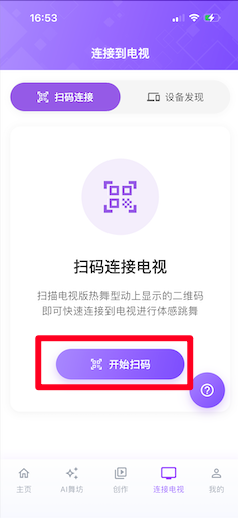
My phone can’t find the TV, or the QR code connection fails
- Make sure your phone and TV are on the same local network and that the connection works. On a guest or corporate network, check whether devices are allowed to communicate with each other.
- Check both app versions and select the corresponding phone connection mode on the TV.
- Completely close and reopen both apps, return to the connection page and try again. Restart your router and devices if necessary.
- Check camera, local-network and other permissions requested by the phone app. If you use a proxy or VPN, check whether it interferes with local-network connections.
Different versions may use QR codes or device discovery. Follow the phone connection guide and the actual in-app prompts.
Using the older TV app and need device discovery or manual IP entry? See the older connection instructions →
Camera issues
My USB camera isn’t recognized or won’t start
- Make sure the USB connector is secure, check the cable and try another TV USB port.
- Check camera permission in your TV’s app management or permission settings. Close other apps that may be using the camera.
- Restart the TV and app. If possible, check whether the camera works in another compatible app.
- Verify compatibility between the camera, TV and app version. If it still doesn’t work, try connecting your phone or contact support.
I’m not visible, or detection is unstable
Adjust the camera’s direction and distance to include your whole body. Use even lighting, reduce obstructions and busy backgrounds, and clear nearby obstacles. Make sure the camera and stand are steady.
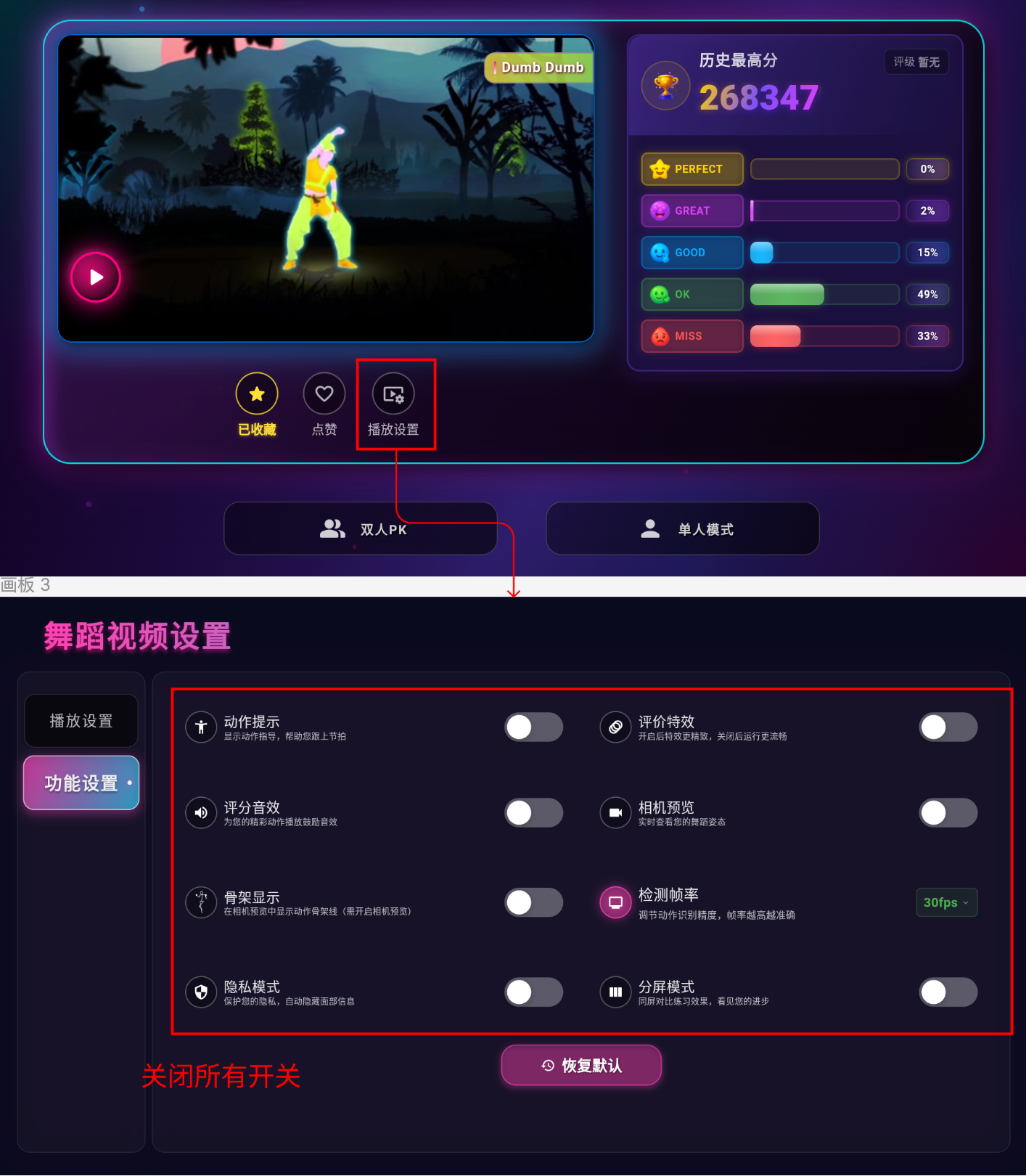
If your device is struggling, try disabling camera preview, split-screen or movement hints. Available settings depend on the app.
Playback & dancing along
Videos load slowly or stutter
- Check your TV’s network signal. If needed, restart the router or improve the connection between the TV and router.
- Try lowering video quality in the app settings. Close unnecessary background apps and check available storage.
- Depending on device performance, try turning off movement hints, scoring sounds, camera preview or split-screen.
- If TV camera mode isn’t smooth, try phone connection mode.
How do I adjust playback speed, picture quality and detection frame rate?
Look for playback, picture-quality and feature settings on the video player screen or in the app settings. Available controls, speed options and features depend on your current app and device. Some require membership.
Detection frame rate affects both device workload and movement detection. Adjust it to suit your device, and try reducing the workload first if playback isn’t smooth.
What if dance scoring seems inaccurate?
Make sure your whole body is in view. Improve the lighting, your position and the background, and check that the camera connection is stable. Adjust detection frame rate to suit your device or compare the results using phone connection mode.
Device performance, network conditions, lighting and obscured movements can all affect the experience. If the problem continues, note your device and app versions and contact support.
Troubleshoot the app
The app crashes, won’t start or runs slowly
- Completely close and reopen the app. Restart your TV and try again.
- Close unnecessary apps, check your connection and remaining storage, and make sure you have a version suited to your device.
- Follow your TV’s prompts to remove cache that is safe to delete. Before uninstalling or clearing app data, check how you sign in and whether local files can be recovered.
- If problems continue, note when they occurred, the steps taken, device model, system and app versions, and any error message. Contact support with those details.
Still stuck? Use Help & feedback in the app, or email smartlightning3d@outlook.com to contact us. Don’t send passwords or verification codes.