
Help center / Older TV versions
older TV app guide
Installation and usage reference for older versions of Keepdance for TV. Interfaces vary by version and device; follow what your screen shows.
Installation & updates
How can I identify the original TV interface?
These two historical interfaces are retained from the original help center to help identify older versions. Check the app and download center for current versions and installation methods.
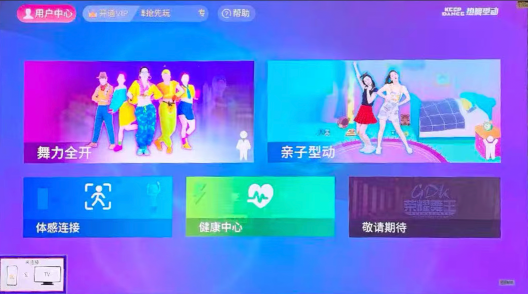
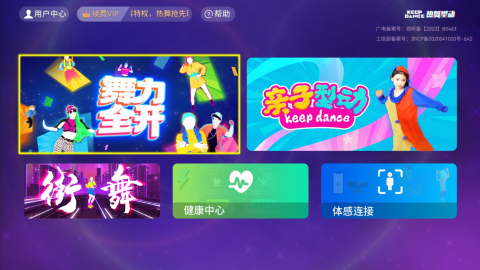
Watch the older walkthrough on Xigua Video ↗
Install from your TV’s app store
Open your TV or TV box’s app store, search for Keepdance (热舞型动), select the app and follow the prompts to install or update. Store layouts, results and versions vary by brand and system.
Store layouts and availability depend on your device. If you can’t find the app, see the USB installation steps below.
See USB installation steps → . Whether a newer version can be installed over an older one depends on your device and its prompts.
If installation fails or the app crashes, see app troubleshooting → . Minimum system requirements depend on the version you install.
Switch motion-tracking methods
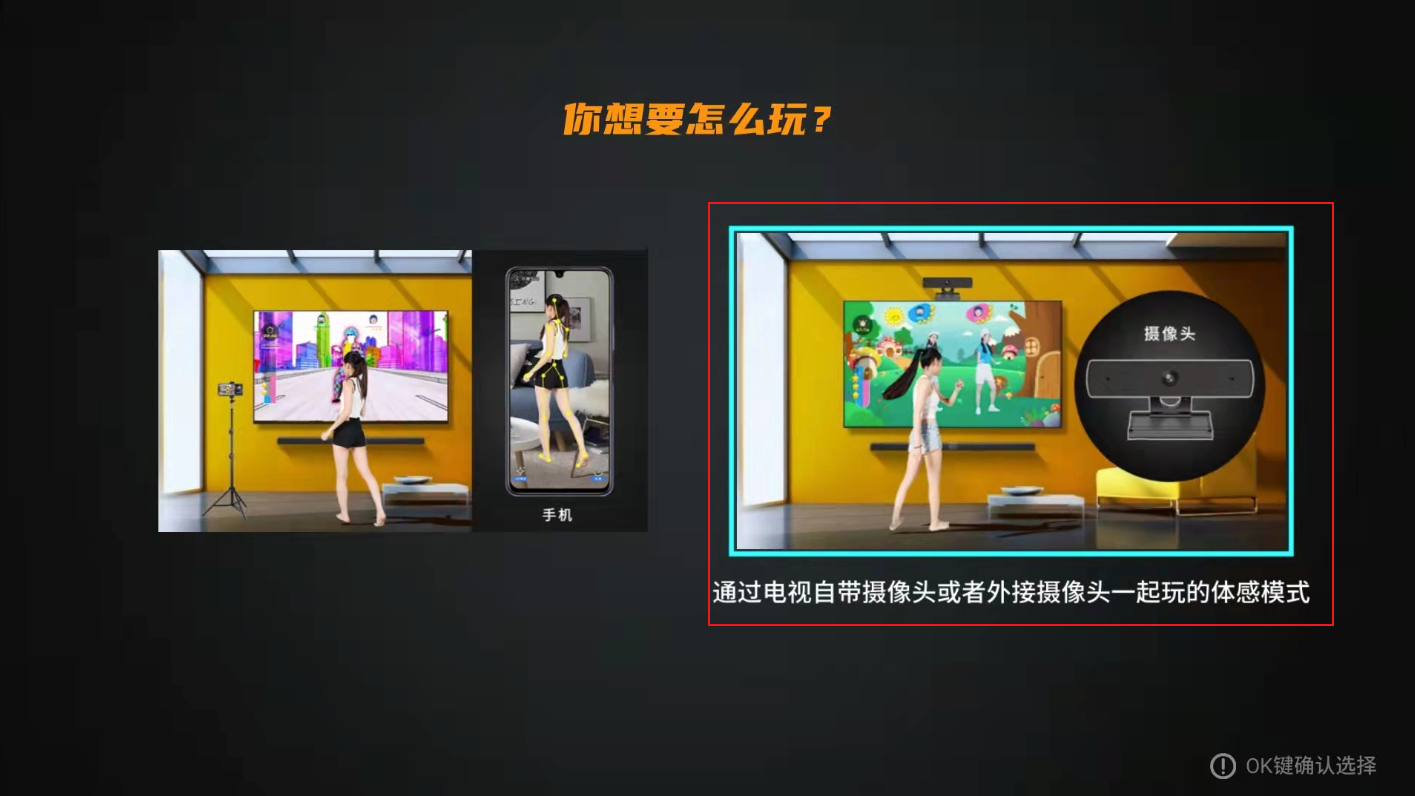
Switch from camera mode to a phone connection
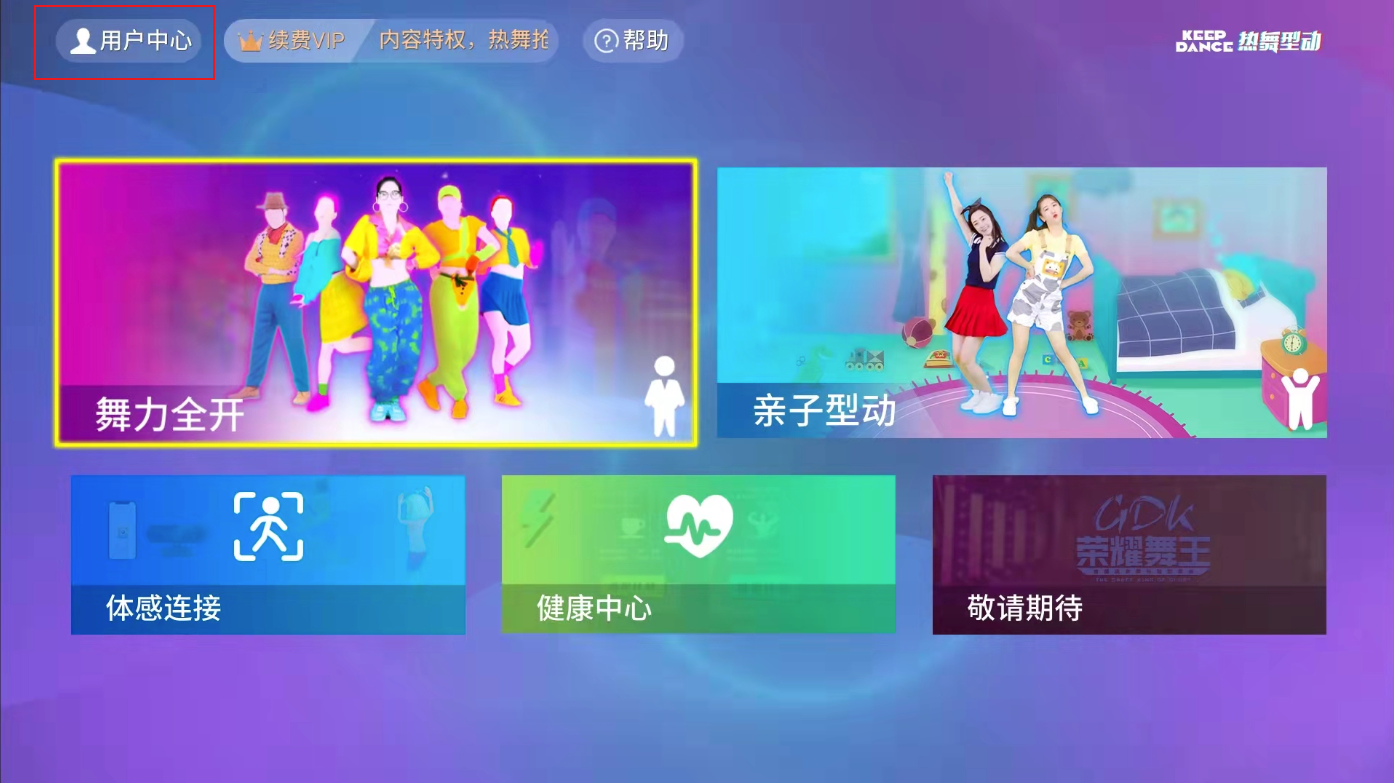
- On the older TV home screen, open User center (用户中心), then Device switcher (设备切换).
- Choose the phone motion-tracking option and follow the TV prompts.
- Open Keepdance Party on your phone, go to the TV connection page, choose device discovery and connect to the TV. First make sure both devices are on the same local network.
The “Kuwan” app used in the older tutorial is no longer maintained. Names of connection options may change between mobile app versions.
If device discovery doesn’t find your TV and your version offers Enter IP (输入 IP), find your TV’s local-network IP address and enter it as prompted.
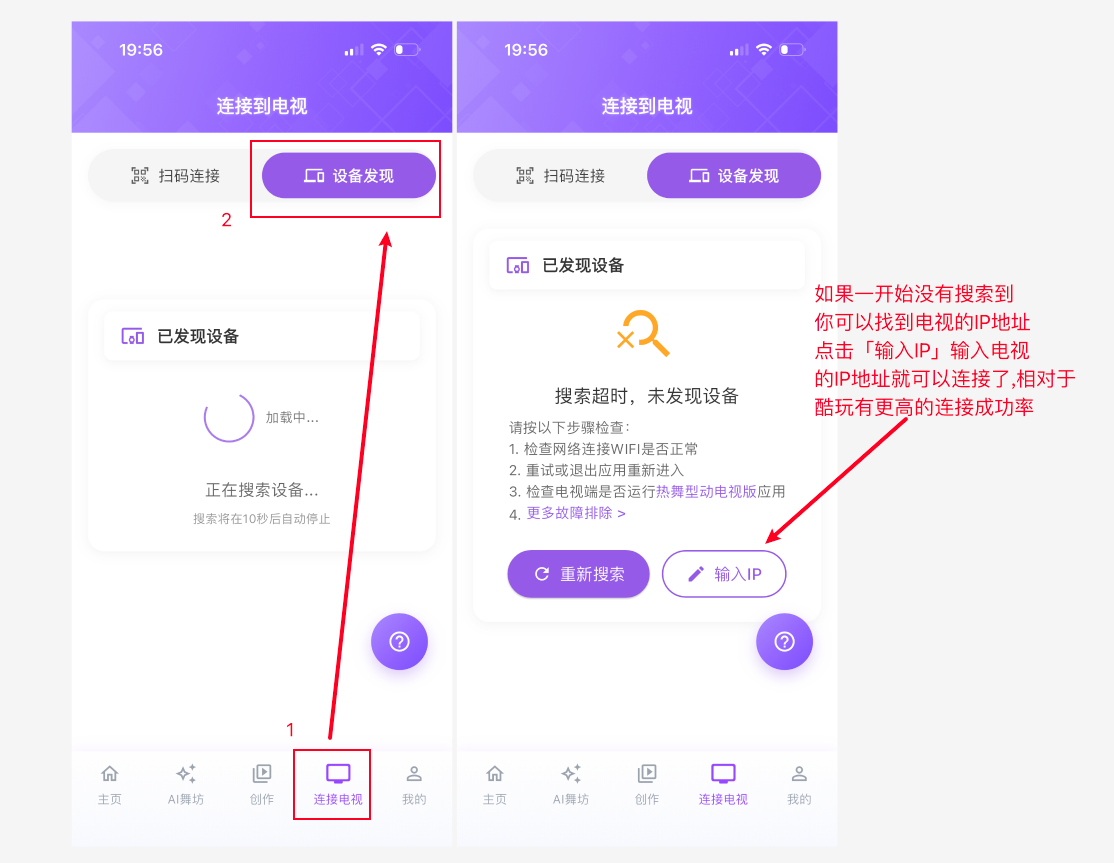
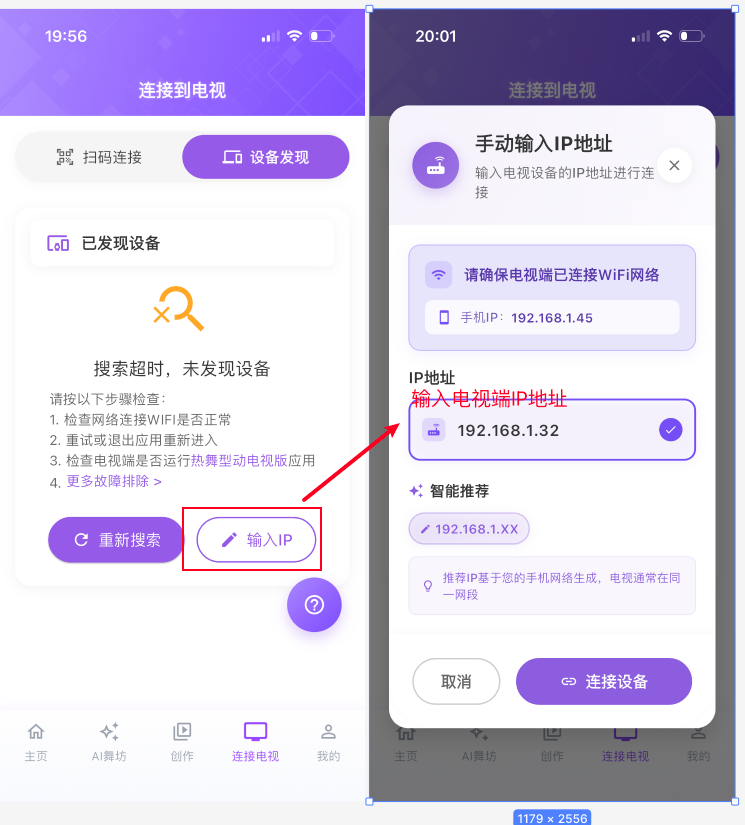
Switch to the TV camera
In the older TV app, go to User center → Device switcher (用户中心 → 设备切换) and choose camera motion tracking. Make sure the camera is connected and grant the camera permissions your device requires.
See camera installation instructions →
Avatars & nicknames in the older app
How do I change my avatar or nickname in the older TV app?
The older guide describes viewing or changing avatars and nicknames in the Keepdance (热舞型动) WeChat official account under Service help → My information (服务帮助 → 我的信息). If that option is displayed, follow the prompts. Names and features depend on the current official-account page.
If changes don’t appear on TV, check your signed-in account and contact support. For information on account and personal-information use, read our Privacy policy .
Cameras & positioning
If the camera won’t open or detect you, see camera troubleshooting → .
Before buying, see our camera selection advice → .
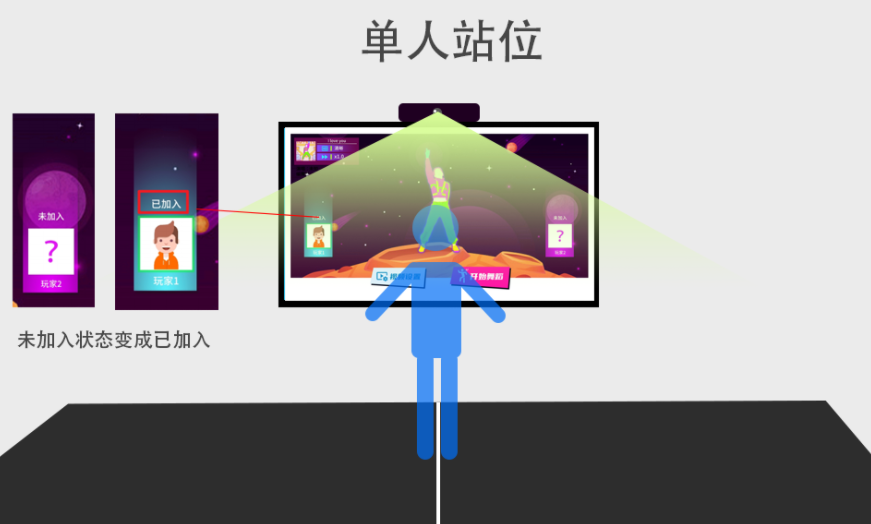
Where should one or two players stand?
Use good lighting and keep each player’s whole body in the camera’s view. For two players, stand on opposite sides of the camera and adjust your distance to fit the view. The older guide suggests approximately 1.5–2.5 meters, but use whatever distance keeps both players fully visible.
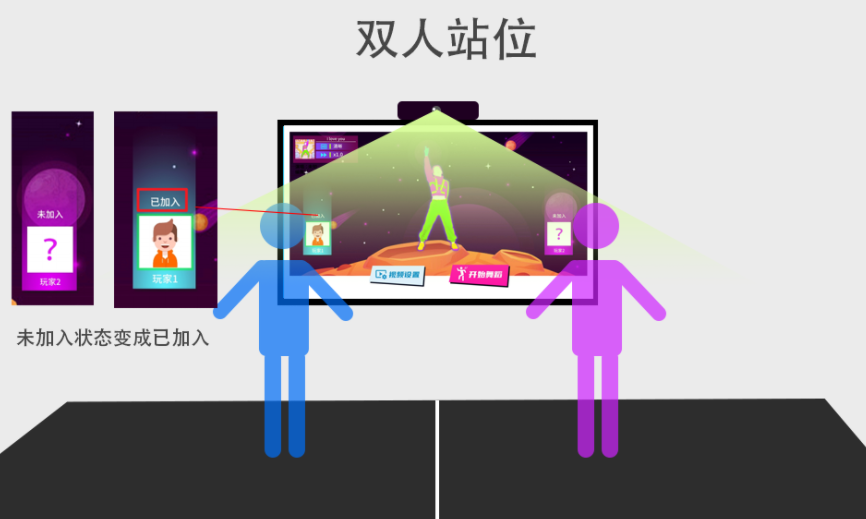
The historical guide notes a two-player detection issue in V1.2.3.0. If you see a problem, check for available updates and contact support about compatibility.
Playback & network
Black screen or stuttering video
In some older versions, Video settings (视频设置) is available on the pre-dance screen. If offered, try switching Software decoding / General video (软解 / 通用视频) or General quality (通用画质) when the video is black or playback fails. Options vary by version.
If stuttering continues, see general playback troubleshooting .
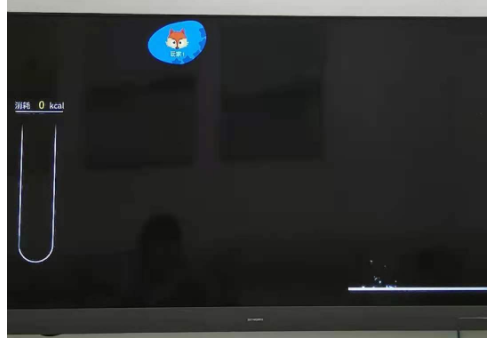
For picture quality, playback speed and detection frame rate, see playback settings → .
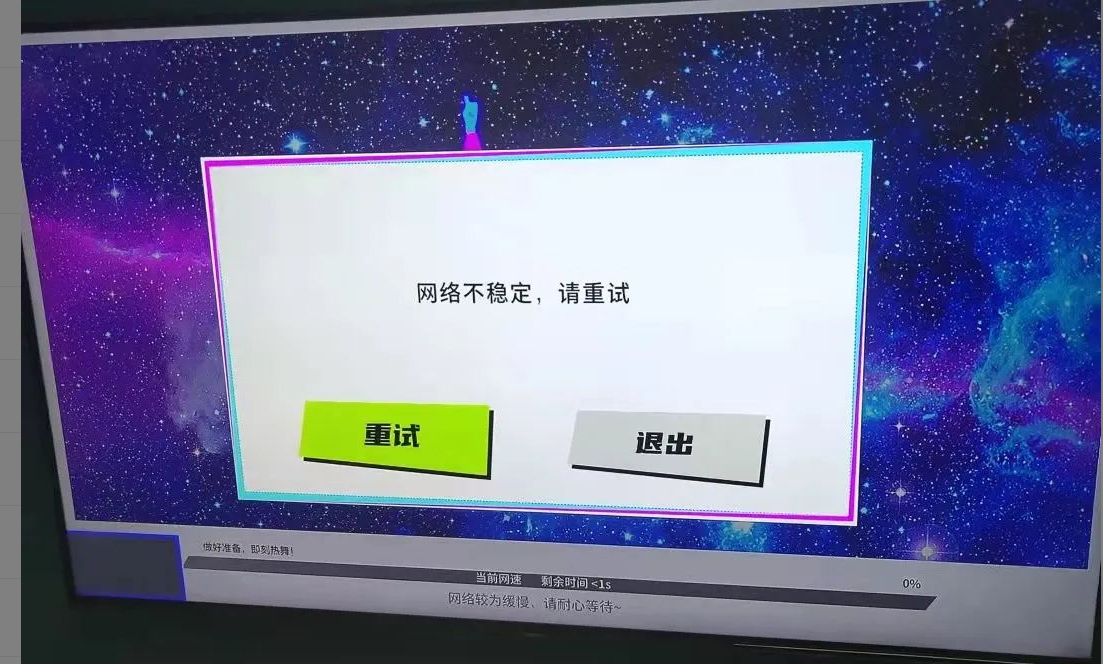
Videos won’t load or the sign-in QR code is missing
If the sign-in QR code is missing, check the TV’s network. You can refer to network and playback troubleshooting . You can also temporarily compare the connection using a phone hotspot; be mindful of mobile data usage. If the problem continues, note the symptoms and errors and contact support.
Storage or camera permission issues
Find Keepdance in your TV’s system settings and check permissions and storage for the features you use. Permission names and locations vary by TV system version.
For the purposes of specific permissions, see our Privacy policy . You don’t need to grant permissions unrelated to the feature being checked.
Need more help?
Use Help & feedback in the app, or email smartlightning3d@outlook.com with your device model, system and app versions, and a description of the issue. Don’t send passwords or verification codes.